Drop in a photo or a screenshot and this tool finds the smallest version that still looks the same as your original. It is quick, there is no limit on how many you can do, and you keep the original untouched.
Tap to browse, or paste from your clipboardClick to browse · Drag & drop · Paste (Ctrl/Cmd + V)
Image compression without visible quality loss
Drag the slider to compare the compressed image against the original. The file is 80% smaller (213 KB down to 42 KB), and it is the tool on this page that did it.

COMPRESSED
42 KB

ORIGINAL
213 KB
How it works
Drag them in, paste from your clipboard, or browse your files. You can add several at once.
Each image is saved several different ways and compared, so the best method wins on its own merit rather than by a fixed rule.
Save the results. Nothing was sent anywhere, so there is nothing to delete afterwards.
Why this one
There is no single best format. Photos and screenshots compress in completely different ways, so the tool tries each one your browser supports and keeps whichever comes out smallest.
Who it's for
FAQ
Still unsure about something? These cover the questions we hear most.
Keep going
From the blog
WebP makes smaller files than JPG at the same visible quality, PNG is the only one of the three that keeps a transparent background, and JPG is the one every upload form and print shop accepts. Here is which to use for photos, logos, screenshots, and forms.
A portal just refused your photo for being over 100 KB. Here is the 30-second fix, what the quality really looks like once you get there, and what to do when a photo refuses to shrink that far.
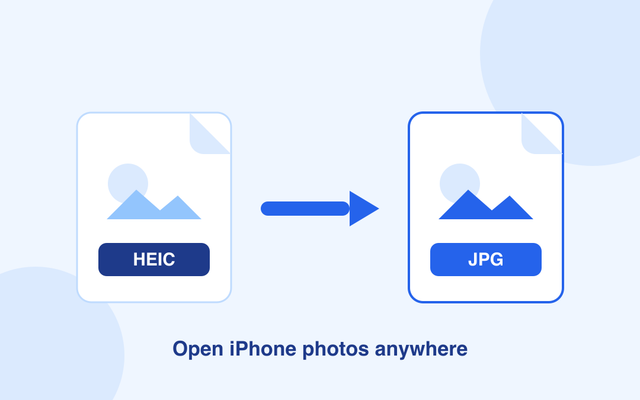
iPhone photos save as HEIC — great for storage, annoying for everyone else. Here’s the ten-second free fix, plus the iPhone settings that stop the problem coming back.
The same site builds QR codes for links, Wi-Fi, contact cards, and more. Also free, also without an account.
Create a QR code