Convert images between JPG, PNG, WebP, and AVIF, in whichever direction you need. Put a whole folder through at once, with no limit on how many files. If you already know which conversion you want, the pages below go straight to it.
Tap to browse, or paste from your clipboardClick to browse · Drag & drop · Paste (Ctrl/Cmd + V)
How it works
Drag them in, paste from your clipboard, or browse your files. Mixed formats in one batch are fine: each file is read on its own terms.
Choose what to convert to, and what goes behind any transparency if the destination cannot store it. Quality is matched to your original unless you set it yourself.
Save the converted files. Nothing was sent anywhere, so there is nothing to delete afterwards.
Why this one
JPG, PNG, WebP, AVIF, BMP, GIF, and HEIC all go in. Four come out (JPG, PNG, WebP, and AVIF), because those are the four worth writing. Nobody needs a tool that produces new BMPs, and an iPhone already makes the HEICs.
Who it's for
FAQ
Still unsure about something? These cover the questions we hear most.
Keep going
 PNG to JPGSmaller files, with a background color behind any transparency.
 JPG to PNGOpens in more places, at the cost of a bigger file.
 PNG to WebPSmaller files, transparency kept.
 JPG to WebPSmaller files, transparency kept.
 WebP to JPGOpens in more places, at the cost of a bigger file.
 WebP to PNGOpens in more places, at the cost of a bigger file.
 AVIF to JPGOpens in more places, at the cost of a bigger file.
From the blog

Your logo keeps arriving with a white box around it. Here is why that happens, which formats can actually hold emptiness, and what the grey checkerboard really means.
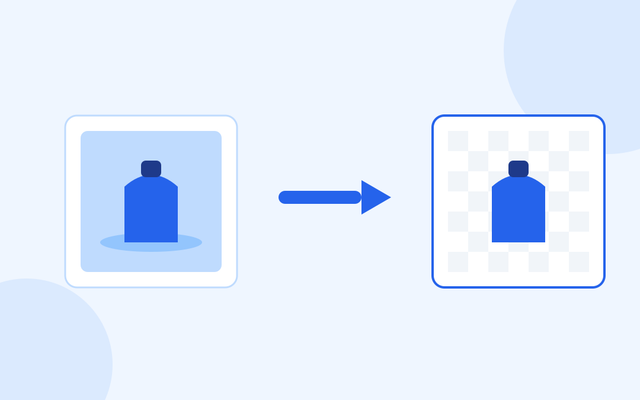
Marketplaces want the product on plain white or on nothing at all. Here is how to cut one out, which subjects come out cleanly, and the saving mistake that puts the background straight back.
WebP makes smaller files than JPG at the same visible quality, PNG is the only one of the three that keeps a transparent background, and JPG is the one every upload form and print shop accepts. Here is which to use for photos, logos, screenshots, and forms.
The same site builds QR codes for links, Wi-Fi, contact cards, and more. Also free, also without an account.
Create a QR code