
Batch crop images into one ZIP
Add a folder or a handful of photos, set the crop once, and every photo gets it, worked out to fit each one's size.
No sign-up · Whole folders at once · Never uploaded, never stored
Add your imagesDrop your images here
Tap to browse, or paste from your clipboardClick to browse · Drag & drop · Paste (Ctrl/Cmd + V)
- JPG, PNG, WebP, AVIF, BMP, GIF
How one crop fits photos of different sizes
The crop is kept as a proportion, not in pixels. If you keep the middle three quarters of the first photo, every other photo keeps its own middle three quarters, so a large camera photo and a small screenshot each lose the same part.
Lock a shape like Square and every photo comes out that shape, even one that is a different shape from the first.

800 × 800 cropped to 640 × 600
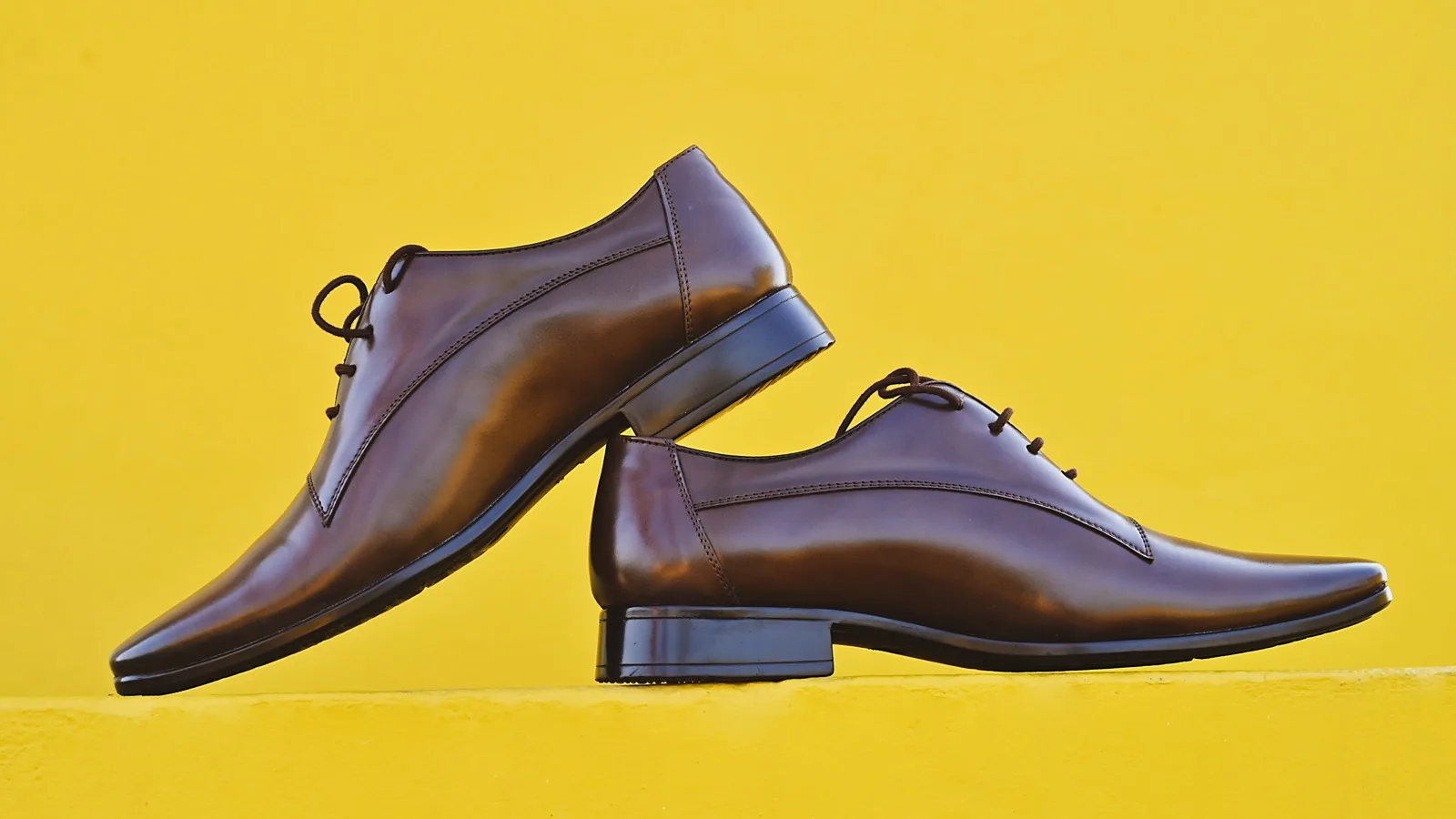
1600 × 900 cropped to 1280 × 675

1500 × 1000 cropped to 1200 × 750
Add your photos. Pick several, or add a whole folder.
Set the crop once. Use the first photo: pick a shape, tilt it, or drag the box.
Download one ZIP. Every cropped photo is inside, named after its original.
 portrait.webp640 × 600 · 28 KB
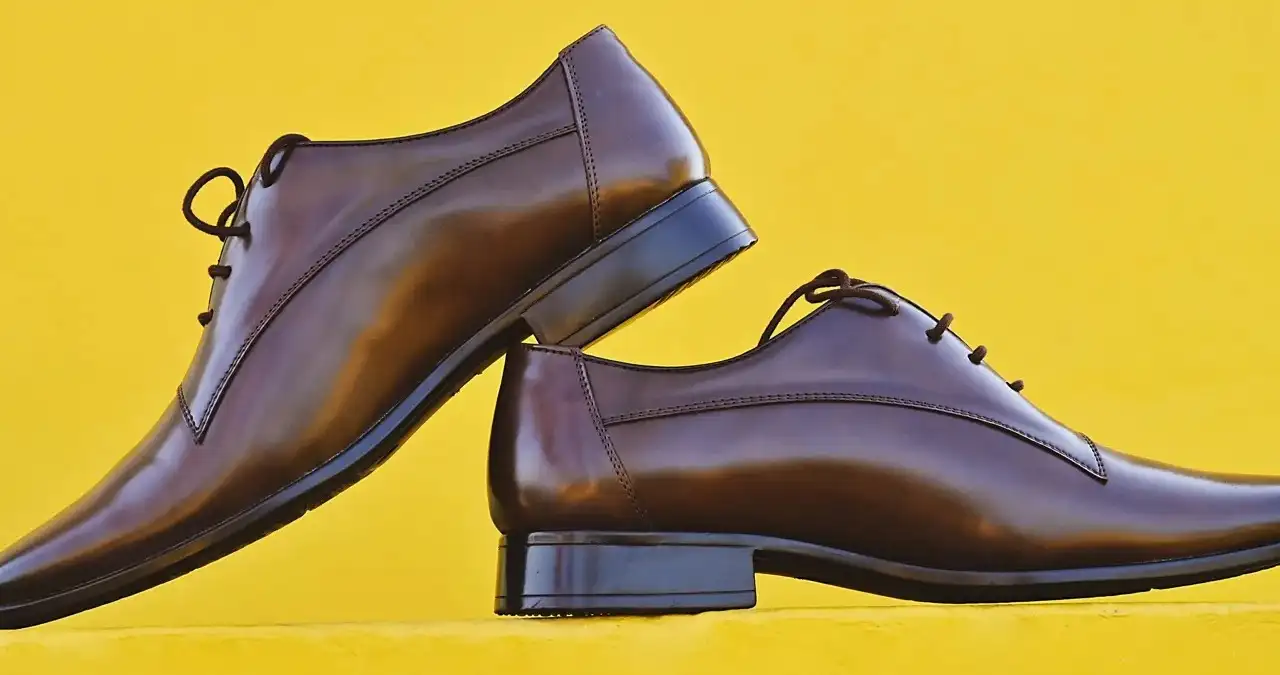 shoes.webp1280 × 675 · 28 KB
 meeting.webp1200 × 750 · 19 KB
Before you crop them all
The editor shows the first photo, so set the crop with a typical one first. A tilt or a quarter turn applies to every photo too.
If the subject sits somewhere different in a few of them, crop those separately afterwards. Each photo can also be saved on its own from the list, if you only need some of them.
Want them all the same pixel size too? Crop here, then send them to the image resizer.
Frequently asked questions
Crop your whole folder
Add the photos, set the crop on the first one, and download them all as one ZIP.