How to Create a QR Code for a Business Card

Michael Page · Published Aug 15, 2026 · 6 min read

How to Create a QR Code for a Business Card
A business card has limited space, but a QR code can give it a useful digital extension.
Someone can scan the code with their phone and quickly access your contact details, website, portfolio, LinkedIn profile, or another online destination.
For sales professionals, marketers, consultants, freelancers, and anyone who regularly networks, this makes exchanging information much easier.
Here’s how to create a QR code for your business card and make sure it works well when printed.
What Is a Business Card QR Code?
A business card QR code is a QR code printed on your physical card.
When scanned, it can help someone:
- View your contact information
- Save your professional details
- Visit your website
- Open your portfolio
- View your LinkedIn profile
- Access a digital business card
- Visit a booking or landing page
The best option depends on what you want the person to do after scanning.
What Should Your QR Code Link To?
For most business cards, there are two main choices.
Contact Details
If networking is your main goal, a vCard QR code is usually the most useful option.
It can give people quick access to details such as:
- Full name
- Job title
- Company
- Phone number
- Website
Instead of manually typing your information into their phone, they can access it directly from the QR code.
You can create a vCard QR code with MyToolkitt.
Website or Online Profile
A URL QR code may be better if you want people to visit:
- Your website
- Portfolio
- LinkedIn profile
- Booking page
- Product page
- Landing page
A simple rule is:
Want people to save your details? Use a vCard.
Want people to explore something online? Use a URL QR code.
How to Create a QR Code for Your Business Card
Step 1: Decide What Should Happen After the Scan
Start with the action you want.
If you want someone to access your professional contact details, choose a vCard QR code.
If you want them to visit a website or portfolio, choose a URL QR code.
Step 2: Open a QR Code Generator
For contact sharing, use the MyToolkitt vCard QR Code Generator.
For other QR code types, you can use the MyToolkitt QR Code Generator.
Step 3: Add Your Information
For most professionals, the essential information is:
- Name
- Job title
- Company
- Phone number
- Work email
- Website
- And many other fields, if applicable.
Keep it focused. Include information that helps someone remember and contact you.
Step 4: Generate and Test the QR Code
Generate your QR code and download the image.
Before printing, scan it yourself and check that:
- Your details are correct
- Phone and email information is accurate
- Links work
- The experience works properly on mobile
Step 5: Add It to Your Business Card
Place the QR code somewhere with enough clear space around it.
Avoid squeezing it between text, logos, borders, or busy graphics.
Add a short instruction such as:
Scan to save my contact
or
Scan to connect
This tells people exactly what they will get.
What Information Should You Include?
A good digital contact card does not need to include everything about you.
For most business cards, these details are enough:
Full name — Use the same professional name shown on the card.
Job title — Helps people remember your role.
Company — Adds professional context.
Phone number — Use your preferred business contact number.
Email — A work email is usually best.
Website — Link to your company, portfolio, or professional page.
Keep the experience simple and useful.
Choose a vCard Template
Your digital contact card does not have to look the same as everyone else's.
MyToolkitt offers different vCard templates so you can choose a design that better matches your profession, personal brand, or company style.
Available Templates
Template 1
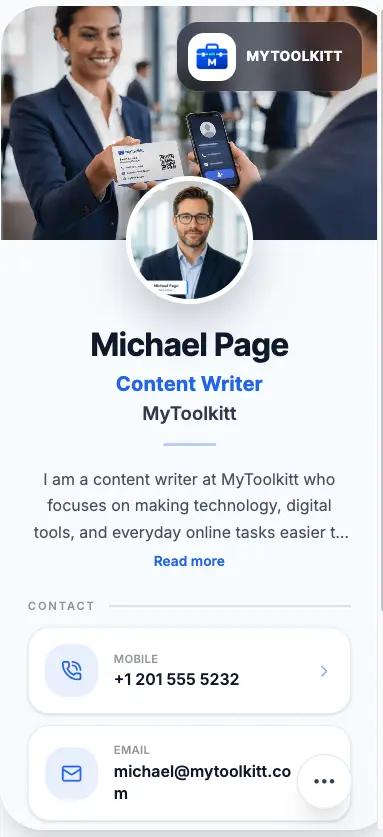
Clean and minimal layout suitable for professionals, consultants, and corporate users.
Template 2
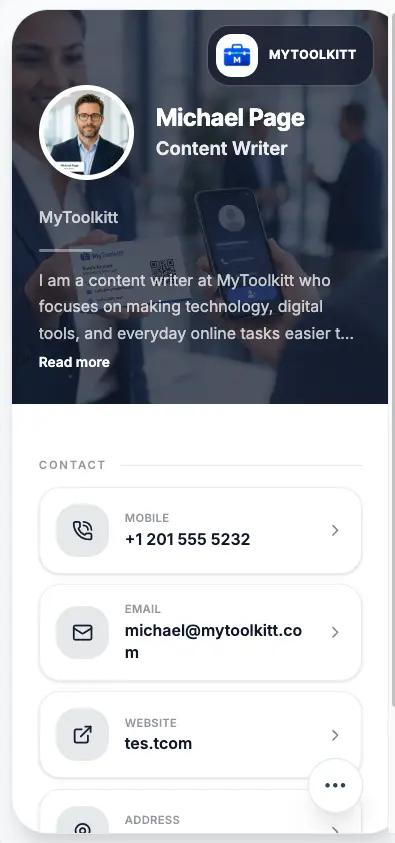
A more modern visual style suitable for marketers, creatives, and freelancers.
Choose the template you prefer, add your information, and generate the QR code for your business card.
You can explore the available options in the MyToolkitt vCard QR Code Generator.
Where Should You Put the QR Code?
There is no single correct position, but three layouts work particularly well.
On the Back
This is often the cleanest option.
Keep your name and essential information on the front and use the back for the QR code and scan instruction.
In a Corner
For single-sided cards, a bottom corner can work well as long as the QR code has enough space around it.
As a Main Design Element
Minimal cards can make the QR code a more prominent part of the design.
Whatever you choose, scanability should always come before decoration.
How Big Should the QR Code Be?
Avoid making it extremely small simply to fit your design.
The safest approach is:
Finish the business card design.
Print one sample at actual size.
Scan it with your phone.
Test it using another phone if possible.
Approve the full print run only after testing.
A QR code that looks clear on a large monitor may behave differently once printed.
Can You Customize the QR Code?
Yes, but usability comes first.
When using brand colors or other customization:
- Maintain strong contrast
- Keep the background simple
- Leave clear space around the code
- Avoid excessive decoration
- Test the printed result
A stylish QR code is only useful if it scans reliably.
Common Business Card QR Code Mistakes
Avoid these common problems:
- Making the QR code too small
- Placing text or graphics too close to it
- Using poor color contrast
- Not explaining what the QR code does
- Adding unnecessary information
- Forgetting to test a printed sample
- Linking to a webpage that performs poorly on mobile
A few minutes of testing can prevent an expensive printing mistake.
Is a QR Code Worth Adding to Your Business Card?
For many professionals, yes.
Your physical business card provides the introduction, while the QR code makes it easier for someone to continue the interaction digitally.
If you regularly meet clients, prospects, partners, or colleagues, a vCard QR code can make your business card more practical.
You can create your vCard QR code with MyToolkitt.
Frequently asked questions
What Is the Best QR Code for a Business Card?
A vCard QR code is usually a good option if you want to share contact details. A URL QR code is better when you want people to visit a website, portfolio, or landing page.
What Should My Business Card QR Code Contain?
For most professionals, include your name, job title, company, phone number, email, and website.
Can Someone Save My Contact Details From a QR Code?
A contact-focused QR code can give someone quick access to the information they need to save your details on their phone.
Should the QR Code Go on the Front or Back?
Either can work. The back usually gives you more room and keeps the front cleaner.
Can I Use My Brand Colors?
Yes. Just maintain enough contrast and test the final printed code to make sure it scans correctly.