
Crop an image to a square
Turn a wide or tall photo into a square and choose exactly which part stays in. Square one photo or a whole set at once.
No sign-up · Stays square while you drag · Never uploaded, never stored
Add your imagesDrop your images here
Tap to browse, or paste from your clipboardClick to browse · Drag & drop · Paste (Ctrl/Cmd + V)
- JPG, PNG, WebP, AVIF, BMP, GIF
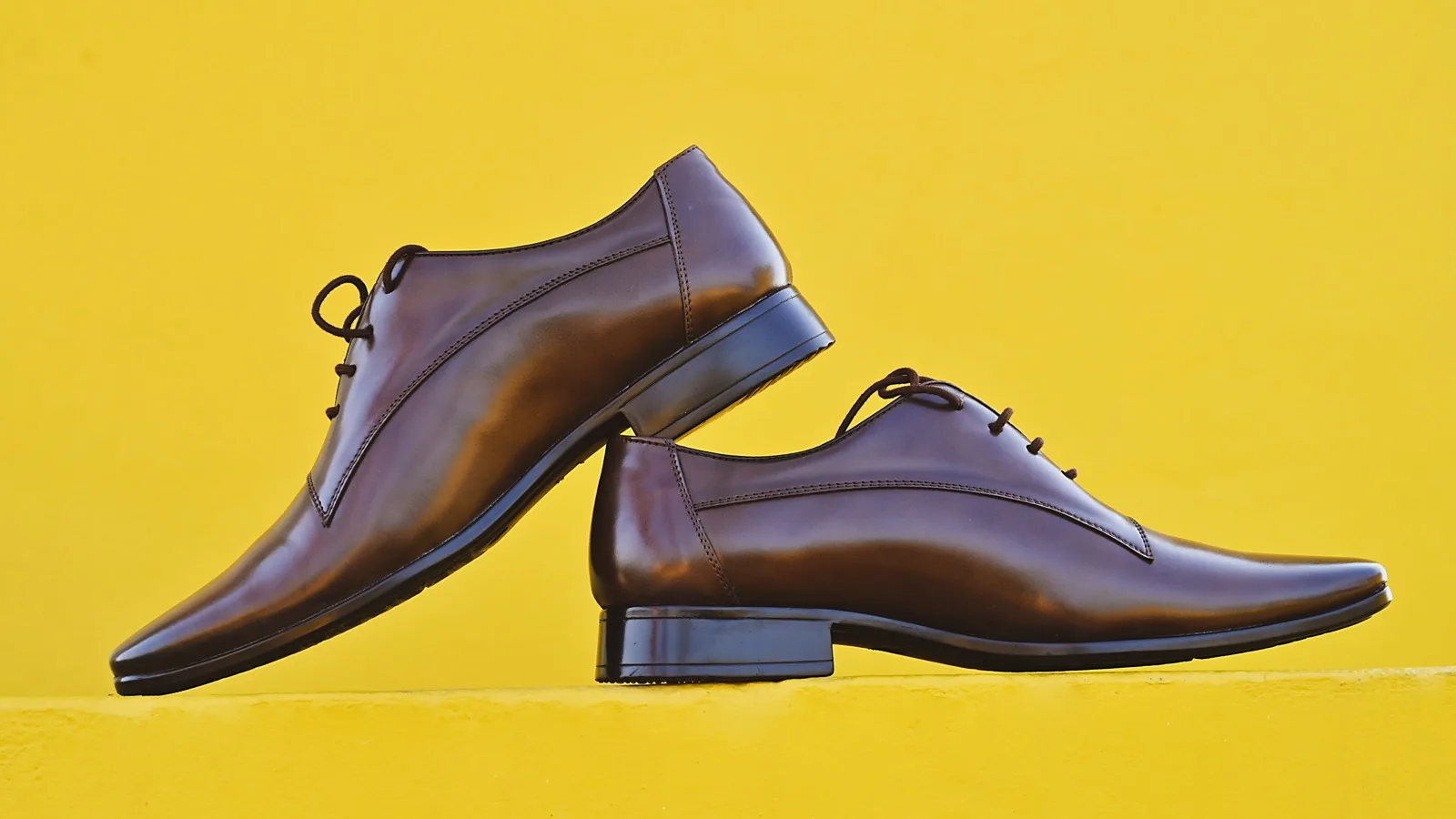
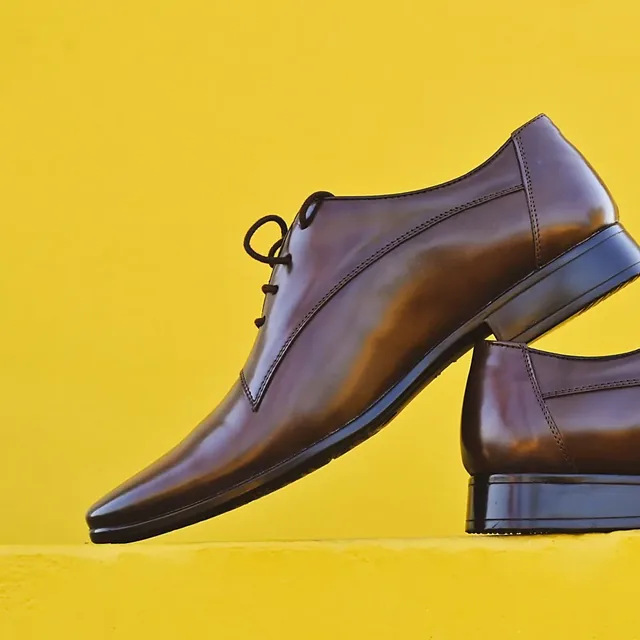 Slid to the left
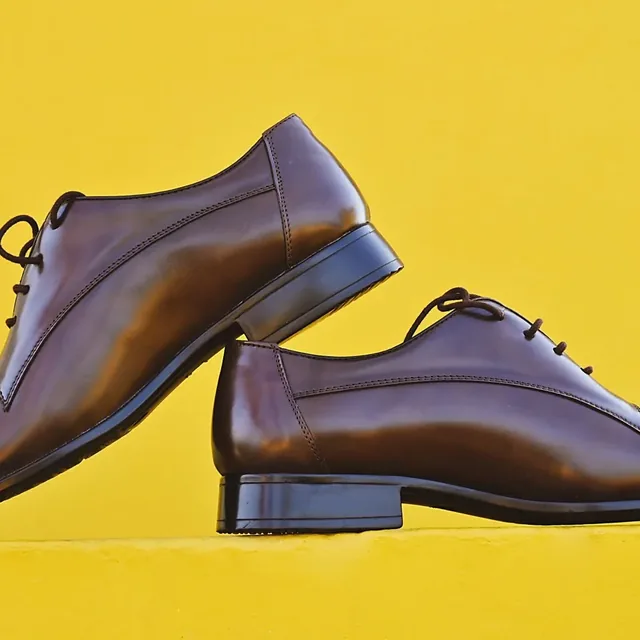 Where it opens
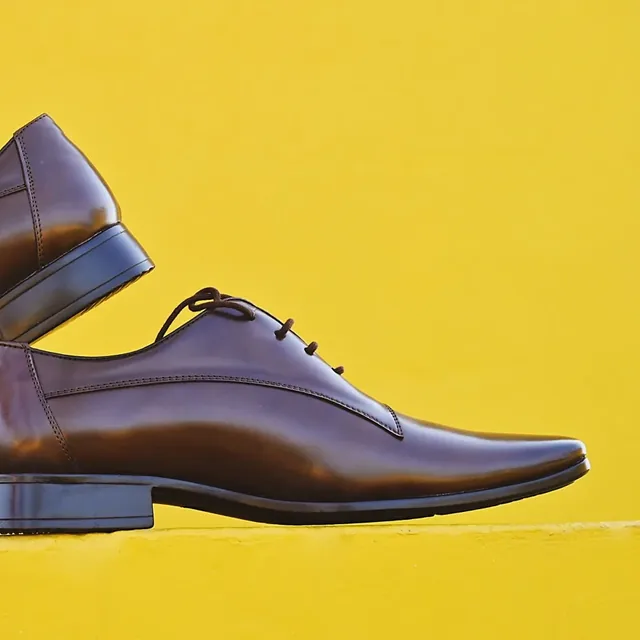 Slid to the right
Choose what stays in
A square from a wide or tall photo always leaves part of it out, so the question is which part. The box opens as the largest square that fits, centered, and you slide it over the part that matters.
Lining the subject up with the grid lines, rather than dead center, often makes a square look less cramped.
Add your photos. One, several, or a whole folder.
Slide the square. Move it over the part you want to keep.
Save them. Each photo saves as its own square JPG.
Squaring a set of product photos
Product photos look tidier when every one is the same shape. Add the whole set and each comes out square, even the ones that are a different shape from the first, with the square in the same relative place.
Shopify's help says 2048 × 2048 usually displays best for square product images, and Instagram keeps a square at up to 1080 × 1080.
Need it at an exact size like 2048 × 2048? Crop here, then use the image resizer.
Frequently asked questions
Crop your photos to a square
Add one photo or a set, slide the square over the part to keep, and save.