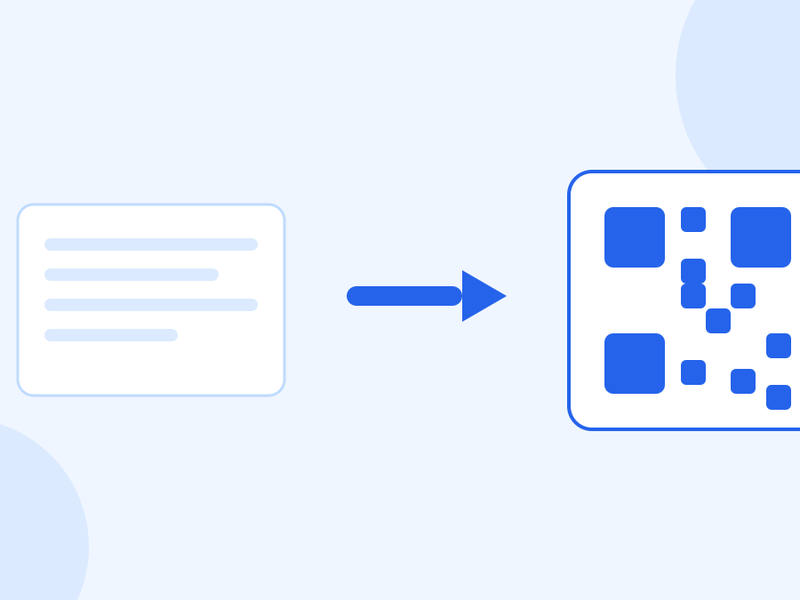
Convert a PDF to JPG Images
Sometimes a page needs to be a picture — for a slide, a listing, or a form that refuses PDFs. Here is how to get there, which resolution to pick, and the one thing you cannot undo.

Michael Page · Published Oct 7, 2026 · 4 min read

A PDF is the right format for documents and the wrong format for almost everything else. Slides want an image. Marketplace listings want an image. Messaging apps show an image and bury an attachment.
Turning pages into pictures takes a few seconds. Knowing which resolution to ask for takes slightly longer, and it is the only decision in the job.
How to do it
- Add the PDF.
- Choose one page or all of them.
- Pick a resolution.
- Convert, and download the images.
Our PDF to JPG tool renders the pages in your browser. The document is never uploaded, never stored and never shared.
Which resolution
Two numbers explain the choice. A screen is roughly 96 dots per inch. A PDF measures itself at 72 points per inch. Render at those numbers and text looks soft, because you are giving each character fewer pixels than the screen can show.
- 150 DPI — the sensible default. Text is crisp on screen at full size, and the files stay a reasonable weight. This is right for slides, messages, listings and anything that will be looked at rather than printed.
- Higher — for printing, or for zooming. If someone will print the image, or zoom into fine detail like a plan or a table of small figures, go up. The files get large quickly.
- Lower — for thumbnails only. Previews and contact sheets. Not for anything anyone has to read.
Very large pages — architectural sheets, big posters — are capped so a request does not try to build an image too big for the device to hold. If a huge page comes back smaller than you asked, that is why.
The thing you cannot undo
A PDF holds text as text. An image holds a picture of text.
Once a page is an image, the words cannot be selected, copied, searched, or read by a screen reader. Translation tools cannot touch it. Anyone who needs a quote from it has to retype it.
That is fine when the point is to show the page. It is a problem when the point is to share the content — and it is why you should keep the original PDF rather than replacing it with images.
Converting back does not recover anything. An image put into a PDF is still an image; the text is gone for good unless the original survives.
When an image is the right answer
- Slides. Dropping a page in as a picture keeps the layout exactly as designed.
- Listings and social posts. Platforms that accept images and ignore documents.
- Messages. An image previews in the conversation; an attachment waits to be opened, and often is not.
- A form that refuses PDFs. Rare, but it happens, usually with older systems.
And when it is not
If the recipient needs to read, search or quote the content, send the PDF. If the file is just too large, that is a different fix.
A heavy PDF usually shrinks a long way without becoming an image at all — compressing it works on the pictures inside and leaves the text sharp and selectable.
And if you are going the other direction, turning pictures into a document, photos into one PDF is the tool for that.
Questions people ask
Will the text still be selectable in the image?
No. An image is pixels. The text becomes a picture of text and cannot be selected, searched or read aloud. Keep the original PDF if that matters.
JPG or PNG?
JPG for pages that are mostly photographs. PNG for pages that are mostly text, diagrams or flat colour — it keeps hard edges clean where JPG adds fuzz around them.
Can I convert just one page?
Yes. Choose the page rather than converting the whole document — far quicker, and you avoid deleting the rest afterwards.
Why is my image blurry?
The resolution was too low for the size you are viewing it at. Convert again at a higher DPI; the original PDF is unchanged, so there is nothing to lose by retrying.
Is my document uploaded?
No. The rendering happens in your browser. Nothing is uploaded, stored or shared.
150 DPI for screens, higher for print, and keep the PDF. The images are a copy, not a replacement.