WebP vs JPG vs PNG: Which Format to Use for What
WebP makes smaller files than JPG at the same visible quality, PNG is the only one of the three that keeps a transparent background, and JPG is the one every upload form and print shop accepts. Here is which to use for photos, logos, screenshots, and forms.

Michael Page · Published Oct 7, 2026 · 8 min read

You saved an image from a web page and got a file ending in .webp that half your software will not open. Or you are looking at an export dropdown with three formats in it and nobody has ever explained which one the job needs.
The three formats are not better and worse versions of each other. They were built to solve different problems, and picking the wrong one usually shows up later, as a rejected upload or a logo with a white box around it.
The short answer
- JPG. Photographs, and anything that has to be accepted by an upload form, a print shop, or software you do not control.
- PNG. Logos, screenshots, diagrams, and anything that needs a transparent background or text that stays crisp.
- WebP. Images on your own website, where you decide what opens them and a smaller file is worth real money in load time.
The rest of this is about the cases where those rules break.
Why JPG is still the default
JPG arrived in 1992 and was built for one thing: photographs. It makes files smaller by discarding the detail your eye is least likely to miss, and on a photograph that works so well you cannot see it happening at sensible settings.
Its real advantage now is not technical. It is that nothing refuses a JPG. Visa portals, job applications, print shops, old desktop software, every camera, and every phone all accept it without a question. That is 30 years of being the safe answer, and it is still the reason to reach for it when a file is leaving your hands.
JPG has one hard limitation that decides a lot of these choices for you: it cannot store transparency. Every pixel in a JPG is opaque. It is also the least efficient of the three at the same visible quality, which is exactly why the other two exist.
What PNG solves
PNG keeps every pixel. Save it, open it, save it again, and the image is identical. There is no quality setting, because there is nothing for one to do.
That gives it two jobs the others cannot take:
- Transparency. A PNG can record that a pixel is partly or fully see-through, which is how a logo sits on a colored background without a rectangle around it.
- Hard edges and text. Lossy compression puts faint grey fuzz around high-contrast edges. On a photograph you will never notice. On a screenshot of code, a chart with labels, or a logo on white, it is the first thing you notice.
The cost is size. A photograph saved as PNG is far larger than the same picture as a JPG, and no amount of fiddling will close the gap, because PNG has no lever to pull. Use it for the things it is good at, not as a general-purpose high quality setting.
What WebP solves
WebP does both jobs in one format. It can throw detail away like JPG, and it can keep a transparent background like PNG, and at the same visible quality it lands on a smaller file than either of them.
That is why websites moved to it. Images are most of the weight of most pages, and smaller images mean pages that load faster on a phone with two bars of signal.
The catch is everything outside a browser:
- Upload forms and portals frequently reject it, and many that accept it will not say so until after the upload fails.
- Print shops want JPG, TIFF, or PDF, and will not thank you for a WebP.
- Older desktop software opens it badly or not at all, which is why a saved-from-the-web image sometimes refuses to open.
So WebP is the right answer for images you serve and the wrong answer for images you send.
Transparency decides it for you
If any part of the image has to show what is behind it, the choice is PNG or WebP. JPG has no way to record it, so the question answers itself.
Going the other way is where people get caught. Converting a transparent PNG to JPG is not a failure, it is a decision: something has to go behind the pixels that used to be see-through.
The image converter asks for that color before it converts, and only when the format you picked cannot keep transparency. On a PNG to WebP conversion the question never appears, because nothing is being lost.
Pick the color the image will actually sit on. White is the usual answer and the wrong one surprisingly often: a logo flattened onto white and then placed on a dark page arrives with a white box around it, which is the exact problem the transparency existed to avoid.
Text inside an image
Lossy formats and small text are a poor match. Screenshots of code, pricing tables, charts with axis labels, and anything with a caption are all cases where the thing being compressed is the thing the reader has to decipher.
Use PNG when someone has to read the words. If the file also has to be small, WebP handles edges better than JPG does, so it is the better compromise of the two lossy options.
One exception worth knowing: a thumbnail for a video platform or a social post gets re-encoded by the platform whatever you upload. Send the cleanest, largest version you have and let it do that conversion once, rather than compressing it yourself first and having it compressed again.
How to convert between them
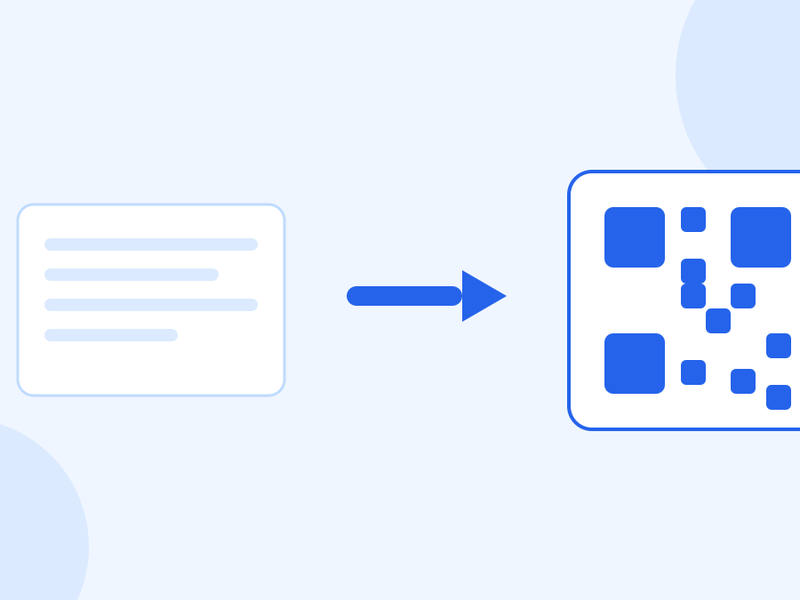
The image converter writes JPG, PNG, WebP, and AVIF, in whichever direction you need, and reads HEIC, BMP, and GIF as well. It runs in your browser: the file is never uploaded, never stored, and never shared.
- Drop the image in, or select it from your device.
- Pick the format you want out.
- Set a quality, or leave it on auto, then download the result.
Two things about that quality control. It only appears when the format you picked can throw detail away, so a PNG has no quality row at all. And left on auto, it does not apply a fixed number to every file: it compares the result against the original and settles on a setting that holds up for that particular image.
For the single most common direction, going from a saved web image to something your other software will open, there is a dedicated WebP to JPG converter with the settings already in place.
When not to convert
Converting is not free, and a few of these are worth more than any format comparison.
- When something named a format. A portal, a print shop, or a client that asked for JPG wants a JPG. Give it exactly that, at the size it asked for, and do not improve on the brief.
- When the image is already lossy. Converting a JPG to WebP re-encodes a picture that has already lost detail once. The result is smaller, but it is a copy of a copy. Convert from the original if you still have it.
- When you are converting to PNG to rescue quality. PNG cannot put back what a JPG discarded. You get a much larger file holding exactly the same picture, with the same artefacts preserved perfectly.
- When WebP is already doing its job. If the images on your own site are WebP and they display correctly, leave them. Convert the one copy you need for something else.
And if the real problem is file size rather than format, the image compressor keeps the format and shrinks the file instead.
Getting under a specific cap is its own job: how to compress an image to 100 KB covers what that costs in quality and when to resize instead.
What about AVIF?
AVIF is the newer format, and it makes smaller files again at the same visible quality, with the biggest savings on large photographic images. Browser support is now broad. Support outside a browser is thinner than WebP's, and WebP's is already the thing that catches people out.
Our converter writes AVIF, so testing it on your own images costs nothing. For most people this year WebP is still the safer default, with AVIF worth trying where the files are big enough for the difference to matter.
If the images came off an iPhone, there is one more format in the mix. How to convert HEIC to JPG covers what HEIC is and how to stop your phone producing it.
Quick answers
Is WebP better quality than JPG?
At the same file size, usually yes, and at the same visible quality it usually produces the smaller file. That is what the format was built to do. It is not a free upgrade on images you already have, though: converting an existing JPG to WebP re-encodes a picture that has already been through one round of loss, so you get a smaller copy rather than a better one.
Should I use WebP instead of JPG?
On your own website, yes, for almost everything. Anywhere a file leaves your control, no. Upload forms, portals, print shops, and older software still refuse WebP often enough that JPG is the one to send. The short version: WebP for images you serve, JPG for images you hand over.
Is PNG better quality than JPG?
For screenshots, logos, diagrams, and anything with text, yes, visibly so. For photographs there is no difference you can see at sensible settings, only a much larger file. PNG keeps every pixel exactly, which is the right trade for sharp edges and the wrong one for a holiday photo.
Can I convert WebP to JPG without losing quality?
Not literally. Both formats are lossy, so the conversion decodes the WebP and encodes it again, and that second encode gives a little away. At a high quality setting the difference is invisible on a photograph. What you cannot keep is transparency: a WebP with a transparent background becomes a JPG with a solid color behind it, and you choose which color.
Which format should I use for printing?
JPG at the highest quality setting, or PNG if the artwork has flat color, text, or transparency. Ask the printer before you export, because many want TIFF or PDF instead and neither of those is on this list. Do not send WebP to a print shop.