
Crop an image into a circle
Put the circle over the part you want and save a round PNG. The corners are transparent, so it sits cleanly on any background.
No sign-up · Smooth round edge · Never uploaded, never stored
Add your imagesDrop your images here
Tap to browse, or paste from your clipboardClick to browse · Drag & drop · Paste (Ctrl/Cmd + V)
- JPG, PNG, WebP, AVIF, BMP, GIF
Round, with nothing in the corners
A circle crop keeps the square you draw and makes everything outside the circle transparent. Put it on a slide, a web page, or a design of any color and only the round picture shows.
That needs a format that can store transparency, so this page saves PNG. JPG cannot, and saved as JPG the corners come out white instead.
Add your photo. It opens with the circle in the middle.
Fit the circle. Move it over the part to keep, and drag a corner to resize it.
Save the PNG. Everything outside the circle comes out transparent.
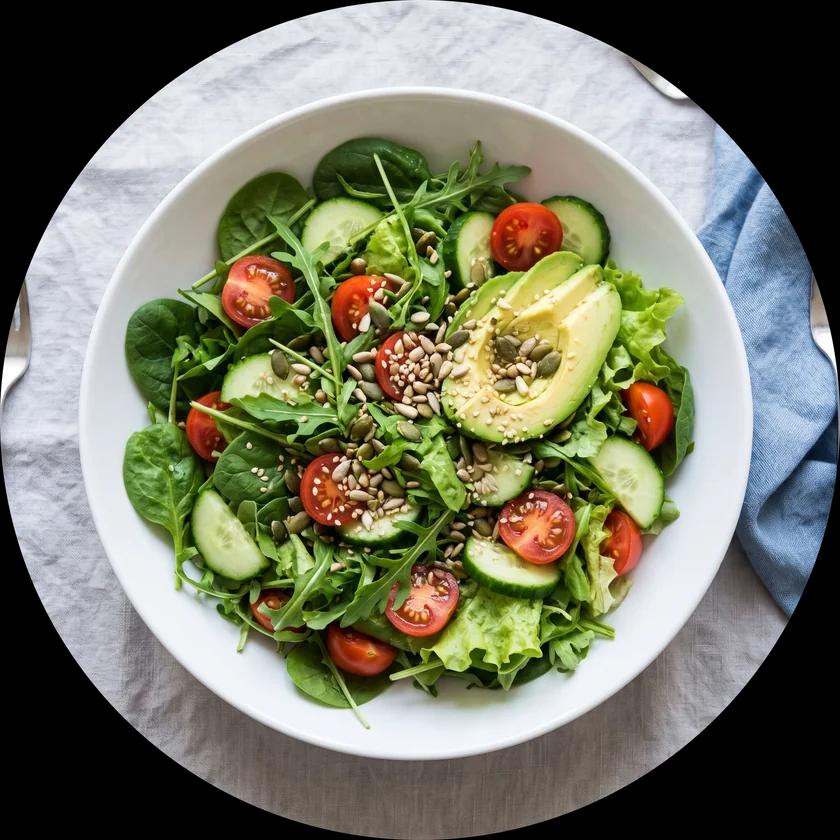

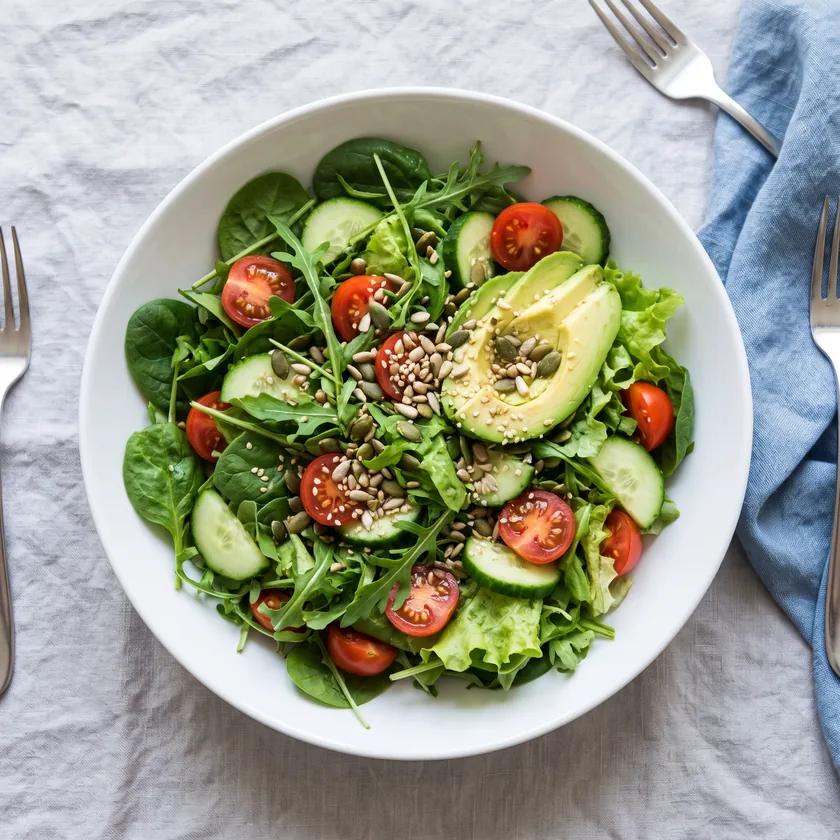
Square, for apps that round itProfile pictures and avatars
Round, for everything elseSlides, sites, and designs
Circle crop or profile picture?
Most apps that show your picture in a circle want a square upload and round it themselves. Sending them a circle crop works too, but the corners you made transparent are the ones the app was going to hide anyway.
Use a circle crop where nothing rounds the picture for you: slides, documents, websites, and designs.
Uploading a profile picture? Crop it square with the ring as a guide in the PFP cropper.
Frequently asked questions
Make your picture round
Add a photo, put the circle over the part to keep, and save it as a PNG.