Split PDF Files

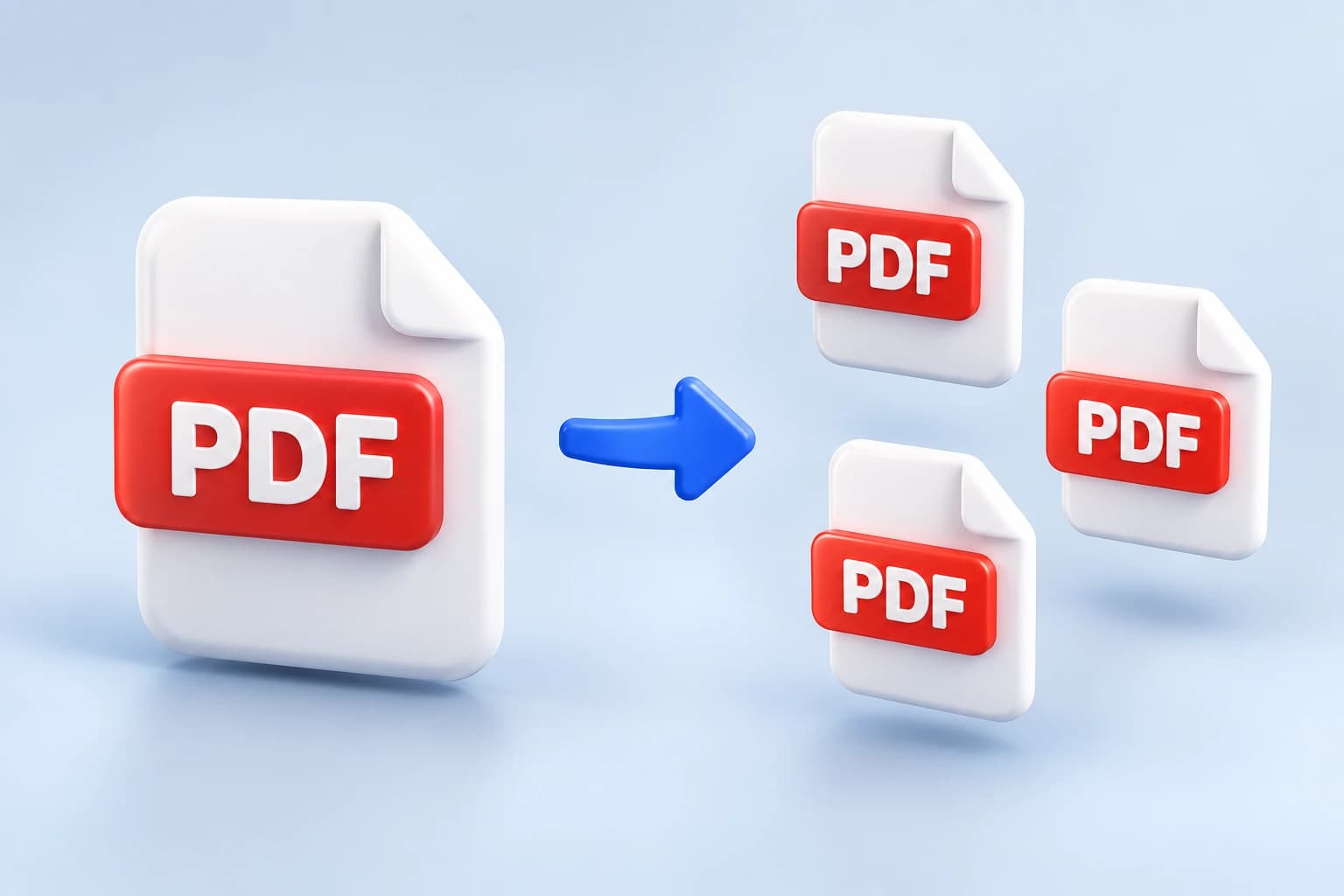
Add a PDF and take it apart the way you need: one file per page, one file per range like 1-3, or just the pages you pick, gathered into a single new PDF. It is free, and your file never leaves your browser.
  1. Add a PDF
  2. Pick pages
  3. Download

Add your PDF

Tap to browseClick to browse · Drag & drop

  • PDF only
  • Up to 50 MB
  • Never uploaded

Split settings

Mode
one new PDF per page

How it works

Three steps to exactly the pages you need

  1. 1

    Add your PDF

    Drag in the PDF you want to take apart, or browse for it. It can be up to 50 MB.

  2. 2

    Choose how to split

    Split every page into its own file, type ranges like 1-3, 7 to get one file per range, or extract the pages you name into a single new PDF.

  3. 3

    Download your files

    Save each new PDF on its own, or take the whole set at once as a zip. Nothing was sent anywhere.

Why this one

Why use this PDF splitter

Three ways to take a PDF apart

Every page as its own file, one file per page range, or the pages you choose gathered into one new PDF. The same ranges box drives the last two, so 1-3, 7 always means the same thing.

  • 02

    Your file never leaves your browser

    The splitting happens on the page you are looking at. Your PDF is never uploaded and never stored, and you can confirm it by going offline after the page loads: the tool keeps working.

  • 03

    Ranges that are checked, not guessed

    Type 1-3, 7, 9-12 and the tool tells you right away if a part doesn't make sense. Ask for a page the document doesn't have and it refuses and names the real page count, instead of quietly delivering the wrong pages.

  • 04

    The order follows you

    In extract mode, pages come out in the order you type them. 3, 1-2 puts page 3 first, which makes this a quick way to reorder a short document.

  • 05

    One download or all of them

    Each new PDF has its own save button with its measured size next to it, and a single zip carries the whole set in one go.

  • 06

    Pages keep their quality

    Pages are copied into the new files, not re-rendered or recompressed, so text stays sharp and images are untouched.

Who it's for

When you'd use it

  • Someone sharing one section

    Pulling a chapter out of a long report to send on its own, instead of making people scroll through the whole file.

  • A bookkeeper

    Separating a scanned batch of receipts or contracts into one file per document, so each can be filed and found on its own.

  • A student

    Extracting just the assigned pages from a large course reader into one smaller PDF that is easier to read and search.

FAQ

Frequently asked questions

Still unsure about something? These cover the questions we hear most.

Keep going

Related tools

Browse all 15 tools

Need to combine PDFs instead?

The matching tool merges several PDFs into one file, in the order you choose. Also free, also in your browser.

Merge PDF files